How to Update Software When Storage Is Full: A Guide
Learn practical steps to update software even with full storage. Free space safely, use offline installers, and protect data with SoftLinked guidance for aspiring developers.


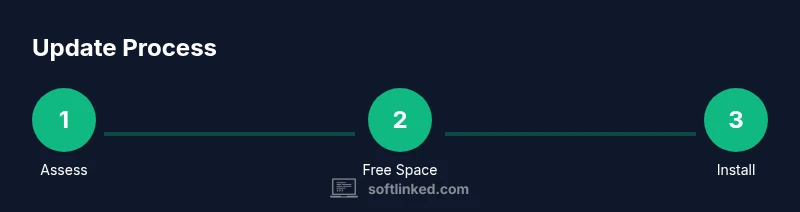
You're about to learn how to update software when storage is full by freeing space, selecting space-efficient installers, and following a safe update flow. According to SoftLinked, start by identifying the largest apps, clearing caches, and moving nonessential files to external storage. Then execute a tested, step-by-step update that minimizes risk and preserves your data.
Why storage fullness impacts software updates
Storage fullness is more than a nuisance—it directly affects whether updates can even start, progress without interruption, and complete without errors. Modern software installers often require temporary working space to unpack files, build delta patches, and verify integrity. When free space dips below a safe threshold, installers may fail mid-process or leave partial changes that corrupt applications. According to SoftLinked Team, storage hygiene is a prerequisite for reliable software updates. This means that before attempting any update, you should understand how much space is needed, what will be removed or relocated, and how to recover if something goes wrong. In practice, you’ll balance required space for the update with space you can safely reclaim from caches, logs, and infrequently used files. A deliberate plan reduces risk and speeds up the update cycle, especially on devices with limited storage.
Assess your current storage and plan
Before you start, quantify what you have and what you need. Check available space on your system drive and compare it to the documented update footprint. If the device supports it, enable a temporary update staging area so you can test the installation without touching your live environment. Create a minimal backup of critical data to a separate drive or cloud storage in case anything goes wrong. With a clear plan, you’ll know whether you can proceed with a full online update, or if you must use offline installers and space-saving tactics. The goal is to ensure you have enough room to complete the update while preserving user data and settings.
Free up space quickly and safely
Start with fast wins that don’t risk your data. Remove temporary files and caches, clear browser storage, and uninstall apps you rarely use. Move large media files (photos, videos, archives) to an external drive or cloud storage if feasible. If your system supports it, enable disk cleanup tools to identify duplicate files and large installers you can relocate. Compress older documents or move them to a secondary partition if available. Each action should be intentional and reversible, so you can revert if you discover you removed something essential.
Use offline installers and space-saving methods
Offline installers let you update without streaming large downloads, which helps when bandwidth or storage is constrained. Download the official offline package on a connected device and transfer it to your target machine via external storage. For embedded devices or constrained environments, use compact delta updates or modular installers that only include the components you actually need. When possible, apply updates in a staged fashion—update core components first, then any dependent modules—so you don’t oversaturate disk space with multiple temporary files.
Platform-specific strategies: Windows
On Windows, use Disk Cleanup and Storage Sense to reclaim space, then run the update from an offline installer if supported. If you must download, choose the smallest available update package and pause nonessential services to reduce I/O pressure during installation. Ensure System Restore is enabled so you can revert quickly if the update steps introduce instability. After the update, run a quick health check and re-enable services you paused. Keeping a habit of monthly space audits helps prevent future bottlenecks.
Platform-specific strategies: macOS
macOS users should start with managing iCloud storage, local caches, and user folders, as updates can require temporary staging space. Use Storage Management to identify and relocate large files, then consider moving nonessential media to an external drive. For macOS updates, prefer official installers or combined updates that minimize the need for large downloads. Verify the installer’s integrity, and run Disk Utility to repair permissions if you notice unusual behavior after the update.
Platform-specific strategies: Linux and open-source environments
Linux and open-source setups often offer more granular control over storage. Use commands like df -h to assess space and du -sh to locate large directories. Consider bootable live media for offline updates or package managers that support partial upgrades. If you’re updating a server or containerized app, use staged rollouts and temporary storage pools to avoid disrupting live services. Backups and snapshots are especially valuable in these environments to recover quickly if updates don’t go as planned.
Troubleshooting common update issues related to storage
If an update fails due to insufficient space, re-evaluate what can be cleared or relocated, and attempt the installation again with a smaller footprint. Check update logs for clues about which component triggered the failure and whether a staged approach could mitigate it. If possible, perform a clean install of the newer version using a fresh offline image. Always verify integrity after completion and run a basic functionality test to catch edge cases early.
Best practices and maintenance for storage-aware updates
Adopt routine storage hygiene: schedule periodic cleanups, limit cache growth, and automate file offloading for large media. Maintain a habit of keeping at least a small buffer of free space dedicated to system operations and updates. Document the update footprints of your most-used applications and prefer modular or incremental updates when available. By treating storage as a core part of the update strategy, you reduce the likelihood of blocking updates and improve overall system resilience.
Tools & Materials
- External storage device (USB drive or external HDD)(Used to offload nonessential data and store offline installers if supported)
- Disk cleanup utility or built-in storage management tool(Helps remove temporary files, caches, and large caches tied to apps)
- Update installer or offline updater package(Use official offline installers when possible to minimize downloads)
- Backup solution or cloud storage(Keep a copy of important files before major updates)
- Stable power source or UPS(Prevents update interruption due to power loss)
Steps
Estimated time: 2-3 hours
- 1
Assess space requirements
Identify how much free space you have and how much the update will require. Check official update notes for footprint and determine a safe buffer. Document your findings to guide subsequent steps.
Tip: Record the update file size and required free space in a note for quick reference. - 2
Pause nonessential processes
Close apps and background services that consume disk I/O. This reduces the chance of fragmentation and speeds up the update process. Ensure you have saved work before stopping services.
Tip: Use task manager or activity monitor to identify high-disk-usage processes. - 3
Free up space with safe cleanup
Run the built-in cleanup tools to remove temporary files, caches, and old logs. Move large nonessential files to external storage or cloud storage. Avoid deleting system-critical directories.
Tip: Empty the recycle bin or wastebasket to reclaim space immediately. - 4
Use offline installer or modular updates
If available, download the offline installer or modular components to minimize on-device downloads. Transfer via external storage and install from there. This reduces bottlenecks when storage is tight.
Tip: Verify the installer hash or signature before running. - 5
Run the update in a staged fashion
Apply core components first, then dependent modules. This approach prevents large temporary files from accumulating and helps pinpoint issues early.
Tip: Monitor the installer progress and have a plan to rollback if needed. - 6
Verify integrity and reboot
After installation completes, verify the update integrity with built-in checks and reboot if required. Ensure the system boots cleanly and services come back online.
Tip: Check for post-update error logs and run a quick health check. - 7
Restore moved data
Return nonessential data from external storage to primary locations if desired. Reconnect cloud backups and re-enable paused services.
Tip: Don’t restore everything at once; verify performance first. - 8
Clean up temporary resources
Delete any temporary installers and redundant copies created during the process. Reclaim space to maintain a healthy margin for future updates.
Tip: Keep a small buffer of free space for future updates. - 9
Document and review
Record what worked well and what didn’t for future reference. Update your storage hygiene plan based on lessons learned from this update.
Tip: Create a short post-update checklist for your team or yourself.
Your Questions Answered
What should I do first when I discover storage is full and I need to update?
Begin by identifying the largest space-consuming items and moving nonessential data to external storage. Then check for an offline installer or a modular update option to minimize space needs.
First, identify big space hogs and offload data, then look for an offline installer to minimize space needs during the update.
Can I update without freeing space?
It's not recommended. Updates require temporary work space. If space is unavailable, the update may fail or cause data loss. Free space or use an offline installer to proceed.
No, it's not safe to update without freeing space. Use an offline installer or free space first.
Is an offline installer safer for limited storage?
Yes. Offline installers reduce the amount of data that needs to be downloaded during the process and can be installed from portable storage, which helps when storage is constrained.
Yes, offline installers help a lot when storage is tight.
What should I do if the update fails due to space after clearing space?
Review the update logs to identify which component caused the failure, free additional space if possible, and retry with a staged approach. If needed, revert to a previous backup and reattempt the update.
Check the logs, free more space if possible, and retry using a staged update.
How can I prevent this issue in the future?
Maintain regular storage hygiene: schedule cleanups, monitor disk usage, and keep a buffer for updates. Consider automatic cache management and moving large files to external storage when they exceed a threshold.
Keep space in reserve and automate cleanups to prevent bottlenecks.
Watch Video
Top Takeaways
- Plan updates around available space and create a safe buffer.
- Use offline installers and modular updates when possible.
- Back up data and verify integrity after the update.
- Free up space with deliberate cleanup rather than random deletion.
- Document lessons learned for future storage-aware updates.