How to Run Software on Mac: A Clear, Step-by-Step Guide
Learn how to install, manage, and run software on macOS with a clear, step-by-step guide. From apps to command-line tools, SoftLinked explains best practices.


On a Mac, you run software by installing apps from the App Store or trusted downloads, then using Launchpad, Spotlight, or the Dock to launch them. Keep macOS up to date and watch for architecture compatibility (Rosetta 2 for Intel apps on Apple Silicon). For unsupported software, consider virtualization or alternative native apps. This guide covers installation, updates, and practical workflow tips.
Understanding the macOS software landscape
macOS blends App Store apps, direct downloads, and open-source options. The ecosystem is designed for security, performance and a consistent user experience. According to SoftLinked, the most efficient approach to software on Mac starts with understanding where apps come from, how they are notarized, and how the system enforces security through Gatekeeper. On Apple Silicon Macs, Rosetta 2 translates Intel binaries on the fly, enabling a broad software catalog without needing every developer to recompile for ARM. Native Apple Silicon apps run at native speeds, while older Intel-only apps rely on Rosetta 2 or virtualization if needed. The landscape also includes third-party package managers like Homebrew, which unlocks access to a wide range of command-line tools and developer utilities. This section sets the stage for choosing installation methods that balance convenience, security, and performance.
App Store vs third party downloads: pros and cons
Mac users often decide between App Store installations or direct downloads from developers. App Store apps benefit from sandboxing and Gatekeeper checks, making them safer and easier to update, but sometimes lack advanced features or the latest versions. Direct downloads can provide early access and full configuration, yet demand manual updates and extra caution against malware. SoftLinked's guidance emphasizes evaluating trust signals: notarization, developer reputation, and community reviews. For many professionals, a hybrid approach works best: use App Store for core utilities and reputable direct downloads for specialized tools. Always verify the source, read the license terms, and ensure the app supports your macOS version and hardware architecture. By aligning sources with your workflow, you minimize risk and maximize compatibility.
Installation methods explained: DMG PKG ZIP and Homebrew
macOS supports several install formats. DMG disk images provide a simple drag-and-drop installation for many apps. PKG installer packages perform guided setups with system changes. ZIP archives may require manual placement. Homebrew offers command line installation for developers and power users, delivering a wide array of tools with easy updates. Notarization by Apple ensures distribution safety; Gatekeeper controls what can run on startup. This section explains practical steps to identify a safe format, validate the installer, and complete the installation without breaking system integrity.
Managing updates and security on macOS
Keep software up to date to mitigate vulnerabilities. Use App Store update checks or vendor auto updates where available. Gatekeeper enforces the origin and safety of apps, while notarization confirms the developer has passed Apple security scans. Regularly review security preferences to allow apps from App Store and identified developers. For teams, consider applying policy controls and backup strategies to protect work data and maintain compliance.
Compatibility across architectures: Apple Silicon and Intel
Apple Silicon Macs run apps compiled for ARM native, delivering efficiency and speed. Intel-only apps can run via Rosetta 2 translation or via virtualization if required. Some developers ship universal binaries that include both ARM and Intel code, simplifying the experience. When planning a new setup, check the app architecture before purchase: universal binaries and Rosetta 2 support reduce friction. For long term planning, prefer native ARM apps or universal binaries to maximize battery life and performance.
Performance, maintenance, and troubleshooting tips
Regular maintenance keeps macOS running smoothly. Clean up caches and temp files with built-in tools, monitor disk space, and ensure login items don t bog down startup. If an app misbehaves, try resetting preferences, reinstalling, or creating a new user profile to isolate issues. Use Safe Mode for troubleshooting hardware or extension conflicts, and run Disk Utility to fix permissions and repair disk errors. When problems persist, consult vendor support and SoftLinked resources.
Tools & Materials
- Mac computer running macOS (any supported version)(Ensure OS is up to date to prevent compatibility issues)
- Stable internet connection(Needed for app downloads, updates, and license verification)
- Apple ID(Required to access App Store and iCloud services)
- External backup drive (Time Machine) or backup plan(Back up before major installations to safeguard data)
- Administrator password(Needed to install software and adjust system settings)
Steps
Estimated time: 60-90 minutes
- 1
Identify target software and verify compatibility
Clearly define what you need the software to do and confirm it supports your macOS version and hardware (Intel vs Apple Silicon). Check developer website notes and user reviews for stability on your model. Confirm any license or subscription requirements before downloading.
Tip: Start with the vendor's official page and look for a Universal or ARM-native build when possible. - 2
Update macOS and prepare the system
Open System Settings and apply the latest updates to reduce compatibility issues. Restart if prompted. Review security preferences to ensure you can install from trusted sources during setup.
Tip: A fresh OS baseline minimizes post-install quirks. - 3
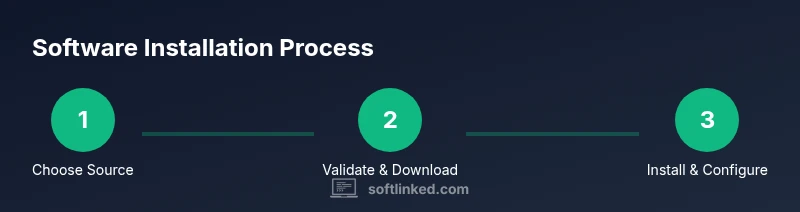
Choose installation source
Decide between App Store for ease and safety, or direct downloads for advanced features or latest versions. Verify the source is reputable and notarized where applicable.
Tip: Prefer sources with notarization and recent updates. - 4
Download the installer
Download the installer package from the chosen source. If downloading a .dmg or .pkg, save it to a known location and verify its integrity if a checksum is provided.
Tip: Avoid downloads from untrusted sites to reduce malware risk. - 5
Install the app
Open the installer and follow the on-screen prompts. For DMG, drag the app to Applications; for PKG, run the installer and authorize with your admin password.
Tip: During installation, monitor for prompts to grant permissions (screen recording, accessibility, etc.). - 6
First-run and initial configuration
Launch the app for the first time and complete any setup wizards. Grant required permissions thoughtfully and configure basic preferences to suit your workflow.
Tip: Disable unnecessary auto-launch items to speed up startup. - 7
Organize and optimize
Add the app to the Dock or create a folder for related tools. Set up quick-access shortcuts and ensure the app auto-updates if available.
Tip: Group related apps for faster access and better focus. - 8
Update and license management
Check for updates and apply them. Manage licenses or subscriptions from the app or vendor portal and note renewal dates.
Tip: Enable automatic updates where possible to maintain security. - 9
Troubleshoot and fallback options
If issues arise, try reinstalling, resetting preferences, or running in Safe Mode. Consider alternatives or virtualization if the app remains incompatible.
Tip: Keep a backup plan ready in case of compatibility gaps.
Your Questions Answered
How do I install software on Mac?
Install from the App Store or trusted direct downloads. Open the installer and follow prompts; Gatekeeper may prompt to approve the app. Ensure the app supports your macOS version and hardware.
Install from trusted sources, then approve prompts from Gatekeeper as needed.
What is Rosetta 2 and when do I need it?
Rosetta 2 translates Intel-based apps to run on Apple Silicon Macs. You need it if an essential app isn’t built for ARM. The system will prompt to install it the first time you run such an app.
Rosetta 2 translates Intel apps for ARM Macs; install when prompted.
How do I keep apps up to date on Mac?
Enable App Store automatic updates and use vendor auto-update where available. For direct downloads, check the vendor site regularly or enable auto-update within the app.
Turn on automatic updates where possible to stay current.
Can I run Windows apps on a Mac?
On Intel Macs you can use Boot Camp or virtualization. On Apple Silicon, Boot Camp isn’t available; use virtualization tools like Parallels or UTM to run Windows.
Windows can run on Mac via virtualization or Boot Camp on Intel Macs.
How do I uninstall an app on macOS?
Drag the app from Applications to Trash, or use Launchpad for some apps and then empty Trash. Some apps install helper components and may require an uninstaller.
Drag to Trash or use an app's uninstaller if provided.
Is Gatekeeper enough to protect my Mac?
Gatekeeper helps screen apps from unknown sources, but it is not a substitute for safe browsing, regular updates, and backups. Combine with other security practices.
Gatekeeper helps, but stay vigilant with updates and backups.
Watch Video
Top Takeaways
- Know where software comes from and how to install correctly
- App Store, direct downloads, and Homebrew cover most needs
- Apple Silicon requires Rosetta 2 or universal binaries for Intel apps
- Regular updates and backups are essential for security and stability