How to Know if There Is Tracking Software on iPhone
Learn practical, step-by-step methods to detect tracking software on iPhone, review profiles and permissions, and secure your device using built-in iOS tools. This guide helps you understand signs, tools, and actions to protect your privacy.


This guide helps you determine if there is tracking software on your iPhone by reviewing unusual battery drain, data usage spikes, unexpected profiles, and unknown apps. You’ll learn how to inspect device management settings, verify app permissions, and use built-in iOS security tools. Follow the step-by-step checks to protect your privacy and regain control over your data.
What tracking software on iPhone looks like
Understanding what may be considered tracking software starts with recognizing that spyware on iPhone is relatively uncommon due to Apple's security model, but it can exist in certain configurations or profiles. According to SoftLinked, the most reliable indicators come from consistent changes you cannot explain: sudden battery drain, spikes in data usage, unfamiliar device profiles, or apps behaving in anomalous ways. This section outlines the general pattern of signals to watch for and clarifies common misconceptions. It’s important to distinguish between legitimate system behavior (like iOS updates and background syncing) and suspicious activity that warrants deeper investigation. If you notice anything unusual, document it and proceed with a careful, structured inspection of settings and profiles. The goal is to learn how to know if there is tracking software on iphone without jumping to conclusions, while preserving device integrity and personal privacy.
Quick note from SoftLinked
The SoftLinked team emphasizes that most reported cases involve misconfigurations or legitimate enterprise profiles rather than covert spyware. Still, a methodical review is essential for peace of mind and safety.
Tools & Materials
- iPhone with the latest iOS(Keep it updated to reduce risk from known vulnerabilities.)
- Mac or PC with internet access(Use it to review profiles, backups, and logs when needed.)
- USB charging cable(For data transfer or connecting to a computer if needed.)
- Notebook or digital notes(Document suspicious findings with timestamps.)
- Backup plan (iCloud or computer)(Ensure you have a clean restore path if needed.)
Steps
Estimated time: 60-90 minutes
- 1
Prepare the device
Power your iPhone on, connect to a secure Wi‑Fi network, and ensure you have a recent backup. This creates a safe baseline before you inspect for anomalies. If you’ve noticed rapid battery drain, enable Low Power Mode during the check to minimize impact on ongoing investigations.
Tip: Back up first; a clean restore requires a known-good backup. - 2
Review battery usage
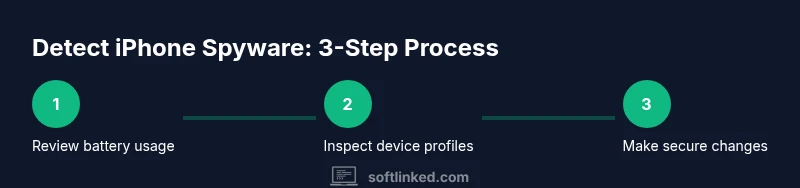
Go to Settings > Battery and look for apps with disproportionate energy use. Sort by Last 24 Hours or Last 7 Days to spot long-hiding culprits. Note the timing of spikes relative to changes in apps or profiles.
Tip: If an unfamiliar app jumps in energy use, consider removing it for further testing. - 3
Check data consumption
Open Settings > Cellular or Settings > Mobile Data and inspect data usage by app. Unexplained spikes can indicate background activity. Compare current data levels with your typical pattern over the past week.
Tip: Reset statistics to get a clean baseline for the next 7–14 days. - 4
Inspect device management
Navigate to Settings > General > Device Management (or Profiles & Device Management). Look for unfamiliar or untrusted profiles. Profiles can push configurations, certificates, or apps; remove only if you trust the source and understand its purpose.
Tip: If you don’t recognize a profile, do not delete immediately—research the issuer first. - 5
Review permissions
In Settings, review app permissions (Location, Microphone, Camera, Contacts). Be wary of apps with broad access that don’t align with their stated function. Revoke permissions where appropriate and observe any functional changes.
Tip: Some apps refresh permissions on update—recheck after updates. - 6
Check location data flow
Verify location services usage by going to Settings > Privacy & Security > Location Services. Look for apps that access location in the background without a clear reason. Disable Location access for unfamiliar apps or set to ‘While Using the App’ where possible.
Tip: Disable background location for apps you don’t trust. - 7
Scan for hidden profiles
Search for any configuration that modifies network settings or VPN-like behavior. If you discover a network profile you didn’t authorize, remove it and restart the device.
Tip: After removal, monitor for a short period to confirm no reappearance. - 8
Evaluate recoverable backups
If suspicious behavior continues, consider restoring from a known-good backup or performing a factory reset as a last resort. Be mindful of what data you restore and avoid reintroducing risky configurations.
Tip: A clean restore is often effective for removing stubborn profiles. - 9
Monitor post-check
After any change, watch for recurrence of symptoms for at least one week. Maintain a security-focused routine, including OS updates and cautious app installation.
Tip: Document any recurring signs with dates to share with a support professional if needed.
Your Questions Answered
Can spyware be on an iPhone without jailbreaking?
Yes, in some cases spyware uses configuration profiles or managed apps rather than system-level access. Regular checks of profiles and permissions help you detect these setups.
Yes. Some threats use profiles or managed apps rather than jailbreaking. Regular checks of profiles and permissions can reveal them.
What is Safety Check in iPhone, and should I use it?
Safety Check is an iOS feature that helps you review who has access to your account and what apps have permissions. Use it to quickly revoke unfamiliar access and reset sharing settings.
Safety Check helps you review who has access and revoke unfamiliar permissions. It’s a good first step if you suspect tracking.
Will a factory reset always remove spyware?
A factory reset can remove many profiles and apps, but ensure you restore from clean sources. If the issue persisted after reset, seek professional guidance.
A factory reset can remove many threats, but restore carefully from trusted backups and verify issues are resolved.
How do I distinguish between legitimate iOS behavior and something suspicious?
Compare unusual behavior against known iOS processes (like background app refresh and system updates). If in doubt, research or contact support before making changes.
Compare behavior with typical iOS processes; when unsure, research or ask support before removing anything.
What steps should I take after removing a suspicious profile?
Restart the device, monitor for new signs, and ensure all apps are from trusted sources. Consider enabling two-factor authentication for Apple ID.
Restart, monitor for new signs, and enable two-factor authentication for added security.
When should I contact professional help?
If signs persist after multiple checks or you’re unsure how to proceed safely, consult Apple Support or a qualified security professional.
If signs persist or you’re unsure, seek Apple Support or a security expert.
Watch Video
Top Takeaways
- Identify anomalous signs early and document them
- Use built-in iOS tools to review profiles and permissions
- Remove or disable unfamiliar profiles cautiously
- Back up before making sizable changes
- Seek professional help if symptoms persist