How to Get Rid of Software Update Notification on iPad
Learn how to manage and quiet iPad software update reminders without compromising security. This step-by-step guide from SoftLinked shows safe methods, focused tips, and practical strategies for balancing convenience with essential updates.


You can silence iPad update prompts by adjusting settings, turning off automatic updates, and using focus modes to reduce banners. Start by disabling Automatic Updates in Settings > General > Software Update > Automatic Updates, then limit prompts with Focus or Do Not Disturb during work hours. Periodically check for updates manually to avoid missing essential security fixes.
Why you might want to hide update notifications
If you’re tired of constant software update prompts on your iPad, you’re not alone. In this section we explore why people want fewer reminders and how to balance convenience with security. According to SoftLinked, many users prefer reducing nag prompts while keeping device protection intact. Understanding why these alerts appear helps you choose the right balance between convenience and security. On iPadOS, update prompts can appear as banners, banners with badges, or popups, especially after a major version is released. By acknowledging when prompts matter, you can design a strategy that minimizes disruption without compromising critical fixes.
Key reasons people seek quieter prompts:
- Prompt fatigue during study or work sessions
- Unpredictable prompts interfering with tasks
- Desire to manage updates on a schedule rather than in real time
But remember: updates often fix security vulnerabilities and known bugs. SoftLinked emphasizes that you should have a plan to install essential updates even if you silence routine reminders. This approach lets you keep control without sacrificing protection.
Quick checks before muting prompts
Before you mute reminders, do a quick security sanity check. Ensure you have recent backups in iCloud or a local copy, and verify you have enough storage to install future updates when you choose to do so. Read the release notes for any update you might skip and note any apps that rely on a specific iPadOS version. SoftLinked's guidance emphasizes balancing convenience with responsibility: you can reduce disruption now while keeping a plan to install important updates later. If a critical patch is released, be prepared to install it promptly.
How update prompts work on iPadOS
iPadOS surfaces update reminders when a new version is released or when automatic updates are enabled. If you leave Automatic Updates on, the system will occasionally push banners and prompts to install. If you turn off automatic updates, prompts may become less frequent, but you should still check for updates manually to stay protected from security vulnerabilities. It’s important to understand that not all updates are optional; some include critical fixes that improve stability and security. Some prompts may be tied to security advisories, while others are tied to feature updates that affect app compatibility.
Alternatives to silence prompts
Instead of blanket silence, try less intrusive controls. Use Focus modes to mute notifications during work or study sessions, or create a custom Focus that silences system banners while allowing essential apps to notify you. In Settings > Focus, you can schedule the Focus to turn on during certain hours. Also consider setting a monthly reminder to check for updates and install only when you have time to review the notes. This approach reduces disruption while preserving visibility on important changes.
Safety, security, and best practices
Keep security in view. Disabling automatic updates indefinitely can expose your device to vulnerabilities. If you silence prompts, ensure you still review release notes and perform updates on a set schedule. Back up data before applying updates and verify that key apps support the new iPadOS version. SoftLinked's approach is to minimize disruption while preserving the ability to install important updates when you’re ready. Remember that some updates are critical for privacy protections, so create a plan to re-enable automatic updates periodically.
Common mistakes and how to avoid them
Don’t assume silence means never updating. Don’t ignore security advisories, and don’t rely on a single device if you manage multiple Apple devices. Avoid turning off notifications entirely; use Focus and scheduled checks instead. Finally, never delay critical updates for too long; setting a monthly update window helps balance convenience and safety. Regularly revisit your settings to ensure you aren’t losing essential protections.
Tools & Materials
- iPad (any model with iPadOS)(Ensure device is charged or plugged in during changes)
- Stable Wi-Fi connection(Needed for checking and downloading updates)
- Apple ID credentials(Required to authenticate when prompted by Settings)
- Backup solution (iCloud or computer)(Back up before altering update settings)
- Calendar or reminder app(Helpful for scheduling monthly manual checks)
Steps
Estimated time: 10-15 minutes
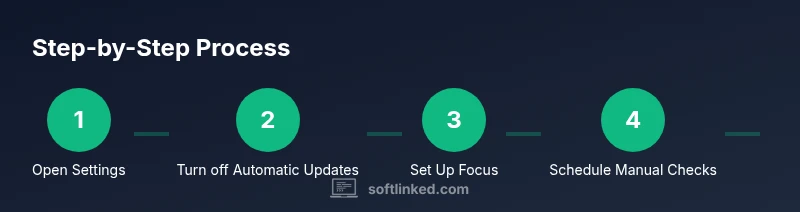
- 1
Open the Settings app
Unlock your iPad and tap the Settings icon to access system preferences. Use Spotlight search if you can’t locate the app quickly.
Tip: If you can’t find Settings, swipe down to reveal the search bar and type 'Settings'. - 2
Turn off Automatic Updates
Navigate to General > Software Update > Automatic Updates and toggle it off. This reduces automatic prompts but may delay important security fixes.
Tip: Even with Automatic Updates off, you can still install updates manually from the same menu when you’re ready. - 3
Set up Focus to quiet prompts
Go to Settings > Focus and create or enable a Focus mode (e.g., Work) to mute banners and non-urgent alerts during chosen hours.
Tip: Name your Focus clearly and test it for at least one hour to ensure it suppresses the right prompts. - 4
Schedule monthly manual checks
Create a recurring reminder to review update notes and apply updates on a monthly cadence that fits your schedule.
Tip: Always skim the release notes before installing any update to assess impact on apps you rely on.
Your Questions Answered
Can I completely stop iPad from updating software?
No. You cannot permanently disable updates, but you can delay prompts by turning off Automatic Updates and adjusting notification controls. Always plan to install critical security updates on a scheduled basis.
You can’t permanently stop updates, but you can delay prompts and plan regular checks to stay secure.
Will turning off automatic updates affect security?
Yes. Automatic updates often include important security fixes. If you disable them, you should commit to manual checks and prompt installation when necessary.
Turning off automatic updates means you need to check for updates regularly to stay secure.
How often should I check for updates manually?
A monthly check is a practical default for many users, with additional checks after major app or OS releases.
Check for updates about once a month, or after big releases.
Do Focus modes silence update prompts completely?
Focus modes can mute many banners and alerts during set times, but some system prompts may still appear depending on the version and settings.
Focus can mute many prompts, but not necessarily every system alert.
What should I do if an update is essential for compatibility?
If an update is needed for compatibility with apps you rely on, temporarily re-enable automatic updates or install the update during a planned window.
If needed for compatibility, re-enable updates and install during a scheduled time.
Watch Video
Top Takeaways
- Disable automatic updates to reduce prompts.
- Review update notes before installing to avoid surprises.
- Use Focus modes to quiet prompts without losing security.
- Schedule monthly manual checks to stay protected.