Can You Remove a Software Update on iPhone? A Practical Guide
Learn whether you can remove a downloaded iPhone software update, how to delete the update file, what you can and cannot uninstall, and safer alternatives for managing iOS updates. A SoftLinked guide for 2026.


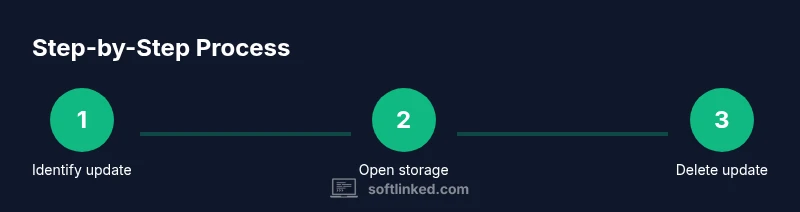
Yes, you can remove a downloaded iPhone software update file if it hasn’t installed yet. You cannot uninstall an already installed iOS version, and downgrading to a prior iOS build isn’t supported unless Apple is signing the older version. To remove a downloaded update: open Settings > General > iPhone Storage, select the iOS Update file, and tap Delete Update.
Understanding iPhone software updates: downloaded vs installed
Can you remove software update on iphone? Understanding how iPhone updates are delivered helps you decide what can be safely removed and what cannot. Updates arrive as a downloaded package that sits on your device until you install or delete it. An installed update, on the other hand, replaces the current operating system and is not simply reversible by deleting a file. According to SoftLinked, understanding these states is essential for storage management and for making informed decisions about future updates. This distinction matters because most users want to reclaim space without risking an unintended upgrade. By grasping the difference between the downloadable payload and the installed system, you gain control over when and how updates affect your device.
What you can remove: downloaded update files
The primary target for removal is the downloaded iOS update file. This file sits in your device storage and does not affect the installed OS. Removing it frees space and prevents the update from auto-installing when you later hit a storage or update prompt. To identify this file, go to Settings, General, and then iPhone Storage. If you see a file named something like "iOS Update" you can tap it and choose Delete Update. Note: deleting this file only removes the download; it does not roll back your OS. This is a safe operation that helps with storage and planning future updates.
What you cannot remove: installed iOS versions
You cannot remove an already installed iOS version from the device through simple file deletion. The installed system has been integrated into the device’s firmware, and removing or downgrading it requires more than just deleting a file. In most cases, Apple does not support uninstalling an installed iOS—it can only be replaced by a newer signed build or a downgrade within a signed window. If you’ve already installed an update, you’ll typically need to wait for Apple to release a compatible downgrade or perform a fresh install during a supported signing period. This section helps set realistic expectations and avoids risky tinkering.
How Apple downgrades work and why it’s limited
Downgrading on iPhone is constrained by Apple’s signing windows. When Apple signs an older iOS version, devices with that version can revert to it if the user connects to iTunes or Finder and performs a restore with the signed IPSW. Once Apple stops signing the older build, downgrades are effectively disabled. Even during a signing window, downgrading can carry risks, including data loss or incompatibilities with apps. The practical takeaway is that downgrades are not a general option and should be treated as exceptional and time-bound. This context helps users weigh the value of staying current versus attempting a downgrade.
Step-by-step guide to remove a downloaded update (narrative)
This section provides a narrative walkthrough to accompany the formal STEP-BY-STEP section below. It focuses on removing a downloaded update file, not downgrading the OS. You’ll learn where to look in Settings, how to verify the file, and how to ensure the deletion is complete. Always ensure you have a current backup before performing any OS-related changes. Being methodical reduces the risk of accidental data loss and keeps your device ready for the next official update.
Alternatives for managing updates and storage
If you want to keep your iPhone current but reduce the chance of automatic installs, consider adjusting settings related to automatic downloads and updates. You can manage storage by cleaning cache and unused data, performing periodic backups, and ensuring you have enough free space before a major update. SoftLinked’s guidance emphasizes proactive storage management and cautious update planning rather than aggressive tinkering. In many cases, simply deleting a pending update is enough to reclaim space without risking OS integrity.
Safety, backups, and planning for updates
Before making changes to updates or attempting downgrades, back up your iPhone using iCloud or a local computer. Safe data protection minimizes the impact of any misstep and gives you flexibility if you decide to install a future update. Always verify the source of any update, avoid third-party downgrade tools, and follow official Apple guidance. This approach minimizes risk and aligns with best practices for software maintenance on iOS devices.
Tools & Materials
- iPhone with the update downloaded(Ensure device is charged or connected to power; back up data before making changes.)
- Charged battery or power source(Keep device powered during the process to avoid interruptions.)
- Settings app access(No external tools required; this is done within iOS Settings.)
- Official Apple support resources(Helpful for confirming current guidance and signing windows.)
- USB cable and computer (optional)(Only needed if performing a full device restore in rare cases.)
Steps
Estimated time: 5-7 minutes
- 1
Open Settings and go to General
From the Home screen, open Settings. Tap General to access device management options, then select iPhone Storage to view how space is allocated and locate a potential update download.
Tip: If Settings is slow, try closing apps running in the background and retry. - 2
Tap iOS Update to view details
Scroll through the list to find an entry that describes a downloaded iOS update. Tap it to see its size and status before deciding on deletion.
Tip: Ensure you’re selecting the update entry, not another app with a similar name. - 3
Choose Delete Update
On the update details screen, select Delete Update to remove the downloaded package from your device. Confirm the action when prompted.
Tip: If Delete Update isn’t available, there may be no pending download or a temporary glitch; retry after a moment or restart. - 4
Confirm deletion
A confirmation prompt will appear; confirm the deletion. The system will free up the space formerly occupied by the update file.
Tip: You’ll see storage space free up after the process completes. - 5
Verify storage and reboot if needed
Return to iPhone Storage or restart your device to ensure the update file is gone and storage reflects the change.
Tip: A quick restart can help the OS refresh its storage report. - 6
Plan future updates thoughtfully
With the download removed, assess whether to install future updates immediately or stage them for later when you have backup and signing windows confirmed by Apple.
Tip: Always back up before major OS changes to protect your data.
Your Questions Answered
Can I cancel an iOS update that has already started installing?
No. If the update has begun installing, you typically cannot cancel and revert through Settings. You should complete the installation and rely on future updates or official downgrades within signing windows, if available.
No. If installation has started, cancellation isn’t supported through normal settings; you’d need official downgrades during signing windows if available.
Will deleting the downloaded update free storage space?
Yes, removing the downloaded update file frees space on the device. It does not affect the installed iOS version, and you won’t lose data from your apps or files by deleting the update package.
Deleting the update file frees space without affecting your current data or installed iOS.
Can I downgrade my iPhone to an earlier iOS version?
Downgrades are only possible while Apple is actively signing the older version. Outside that window, downgrading isn’t supported, and attempting alternatives can brick the device or void warranties.
Downgrades depend on Apple signing; outside that, it isn’t supported.
Are there risks in removing the downloaded update?
Removing a downloaded update is generally low risk and mainly affects storage. If you plan to update later, the update will need to be downloaded again.
Generally safe, mainly frees up space; you may need to re-download later for future updates.
What if Delete Update is greyed out?
If Delete Update is unavailable, there may be no pending download or a temporary glitch. Try restarting the device or checking again after a short wait.
If the option isn’t available, try restarting or checking back later when the system has updated.
Watch Video
Top Takeaways
- Delete the downloaded update file to reclaim space
- Downgrading is only possible within signed windows and is not a general option
- Always back up before major OS changes
- Only delete downloads, not installed OS
- Understand the difference between downloaded updates and installed iOS versions