Blender Software Download: A Step-by-Step Guide
Learn how to safely download Blender software, verify integrity, install on Windows/macOS/Linux, and start using Blender with confidence. This step-by-step guide covers official sources, security checks, and post-install tips for beginners and professionals alike.


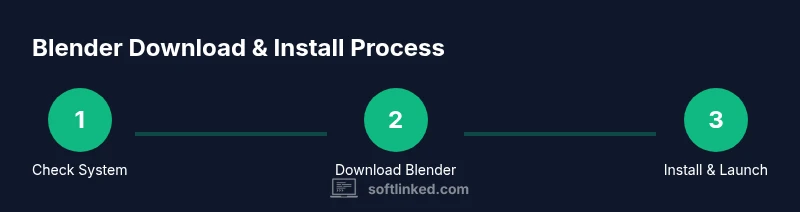
This guide shows you how to perform a blender software download, verify the file, install Blender on Windows, macOS, or Linux, and verify the setup. You’ll learn to pick official sources, protect against malware, and run your first Blender session with confidence. Follow the steps below for a safe, smooth start.
What Blender software download means
Blender is a powerful, open-source 3D creation suite used for modeling, animation, rendering, and video editing. A blender software download refers to obtaining the Blender application from official sources so you can install and run it on your computer. According to SoftLinked, the safest path is to download from the official Blender website and verify you are getting the genuine build. The process is straightforward across Windows, macOS, and Linux, but the exact steps vary by platform. In this guide, you will learn how to locate the official download page, choose the right package for your OS, and complete a clean install. The emphasis is on safety, compatibility, and optimizing Blender for your hardware. Whether you’re a student, a hobbyist, or a professional, starting with a trusted blender software download ensures a smooth setup and reduces the risk of bundled malware or vendor wrappers. SoftLinked's guidance emphasizes avoiding unofficial mirrors and verifying file integrity before installation.
System requirements and supported platforms
Blender runs on Windows, macOS, and Linux, and it benefits from a modern graphics card with up-to-date drivers. In practice, you should ensure your operating system is supported by the Blender version you intend to install, and that your hardware supports essential features like accelerated rendering and viewport shading. SoftLinked's analysis shows that most contemporary machines can handle Blender's standard workloads, including modeling, animation, and basic simulation, with performance improving as you allocate RAM and GPU resources. This section outlines general expectations rather than exact numbers, since hardware capabilities vary widely. We also cover portable options for older devices, such as running Blender from a USB stick or using a lightweight packaging format on Linux. The goal is to help readers choose a Blender download package aligned with their platform, avoid unnecessary bloat, and ensure smooth upgrades over time.
Where to download Blender safely
The safest blender software download comes from the official Blender website: blender.org. Use the dedicated download page to choose the correct installer for Windows, macOS, or Linux, and to access portable or source builds if you need them. Avoid third-party stores or unfamiliar mirrors, which can host tampered installers. The SoftLinked team emphasizes that sticking to official channels reduces risk and simplifies updates. After you download, navigate to your browser's downloads folder and inspect the filename to confirm it matches Blender’s naming conventions. If you encounter mixed results from search engines, go directly to blender.org, then click through to the download area. This approach minimizes malware exposure and streamlines future maintenance.
Verifying download integrity and avoiding malware
Even trusted sources can be compromised by user error or misnavigation, so verification matters. Always download Blender from the official site or reputable mirrors listed there. Check that the archive or installer is signed and that the checksum, if provided, matches the published value. SoftLinked recommends scanning the file with a reputable antivirus tool before opening it, and verifying the digital signatures when available. After extraction or installation, confirm that the extracted files contain the expected Blender executable and that the launcher launches Blender successfully. If you see unexpected add-ons or toolbars, cancel the install and re-download from the official page. This, combined with consistent OS updates, keeps your system safer and your Blender software download trustworthy.
Installing Blender on Windows
On Windows machines, the typical path is to download the Windows installer from Blender's official download page, run the executable, and follow the on-screen prompts. You may be asked to allow the installer to modify your system and to choose an install location. Select a clean destination folder, opt into desktop shortcuts if you prefer quick access, and let the installer complete. After installation, you can launch Blender from the Start menu or the desktop shortcut. If you run into permissions prompts, choose an administrator account or run the installer as an administrator. SoftLinked notes that keeping the installation path simple helps with future updates and addon management.
Installing Blender on macOS
For macOS users, the blender software download typically provides a disk image (.dmg) or a universal installer. Open the downloaded file, drag Blender to the Applications folder, and approve any security prompts from macOS Gatekeeper. Ensure you have active user permissions to install applications, and consider adding Blender to your Dock for quick access. After first launch, macOS may offer to close other applications; this is standard. If you encounter a warning about unidentified developers, enable the option to run apps from anywhere or adjust Gatekeeper settings temporarily. SoftLinked reminds readers that macOS installation requires caution with security settings, but the process remains straightforward for most users.
Installing Blender on Linux
Linux users have multiple packaging options. The Blender team distributes packages for Debian-based distributions (apt), Fedora (dnf), and also Flatpak or Snap for broader compatibility. If you use apt, update your package cache and install the blender package from your distro's repository. For Flatpak or Snap, install via your package manager, then run Blender from your application menu or terminal. Linux users often prefer terminal-based commands for automation or scripting. Regardless of method, ensure you have sufficient permissions and that your graphics drivers are up to date to maximize performance. This flexibility is a major advantage of the blender software download workflow on Linux.
First launch and initial setup
When Blender starts for the first time, you’ll be greeted with a splash screen and default workspace. Take a moment to configure preferences, such as themes, key mappings, and addon visibility. If your work involves Python scripting, ensure the Python console is enabled and that the scripting environment points to the correct interpreter. Save a default startup file after configuring the workspace so you can return to a familiar layout quickly. SoftLinked emphasizes documenting your preferred workflow and keeping a clean startup file to reduce onboarding time for new projects.
Common post-install tasks and troubleshooting
After a successful install, you may want to install essential add-ons, configure render engines, or verify library paths for assets. If Blender fails to launch, check for missing dependencies, graphics driver issues, or conflicting background processes. Update your graphics drivers from the vendor's site and confirm your system libraries are compatible with the Blender build. When adding plugins, verify compatibility with your version and avoid untrusted sources. This section also covers backup practices for preferences and addons to prevent loss after upgrades. This SoftLinked guidance keeps your workflow resilient across updates.
Maintaining Blender updates and add-ons
Blender updates arrive periodically to fix bugs and introduce features. Before updating, back up your startup file and a copy of your addons directory. Use the official Blender download page to obtain the latest stable release, and review release notes to anticipate changes to interfaces or scripting APIs. If you rely on Python-based addons, ensure your Python version remains compatible with Blender’s bundled Python. When you manage add-ons, disable those you do not use to improve startup times. The SoftLinked team recommends scheduling regular update checks and testing new builds on a separate profile to minimize disruption to active work.
Authority Sources
- Official Blender documentation: https://docs.blender.org/
- Blender download page: https://www.blender.org/download/
- MIT OpenCourseWare resource (edu): https://ocw.mit.edu/index.htm
These sources illustrate best practices for safe downloading, installation, and ongoing maintenance of Blender software, and are referenced by the SoftLinked team for reliability and clarity.
Tools & Materials
- Computer with internet access(Stable connection preferred for downloads)
- Web browser(For navigating official Blender sites)
- Admin rights on your machine(Needed for installing Blender)
- Optional USB drive(For offline installer transfer if needed)
- Graphics drivers updated(Ensure compatibility with Blender features)
Steps
Estimated time: 25-40 minutes
- 1
Check system compatibility
Review your operating system version and hardware capability to ensure Blender will run smoothly. This reduces post-install issues and ensures you can complete the download without surprises.
Tip: Refer to Blender’s official requirements page for guidance; do not rely on outdated notes. - 2
Visit the official Blender site
Open your browser and navigate to Blender’s official download page to verify you’re on blender.org. This helps avoid counterfeit installers and ensures you get the latest stable build.
Tip: Bookmark the official download page for quick access on future updates. - 3
Choose the correct installer
Select the installer package that matches your OS and architecture. If unsure, choose the standard installer rather than a portable build unless you have a specific need.
Tip: Double-check the file name and extension before downloading. - 4
Download and save the file
Save the installer to a known location on your computer. Avoid downloads from untrusted sources or unusual domains.
Tip: Use a dedicated downloads folder to keep track of Blender files. - 5
Verify integrity (where available)
If a checksum or signature is provided, compare it with the downloaded file to confirm integrity before running the installer.
Tip: If you don’t see a checksum, rely on the official domain and HTTPS connection. - 6
Run the installer with admin rights
Execute the installer and authorize any prompts requesting permissions. Choose a simple destination folder to simplify future updates.
Tip: On Windows, right-click the installer and select 'Run as administrator'. - 7
Launch Blender for the first time
Open Blender from the Start menu (Windows) or Applications (macOS) and confirm it starts without errors. If prompted, allow necessary permissions.
Tip: Consider creating a workspace backup if you have custom layouts. - 8
Configure basic preferences
Set your theme, keyboard shortcuts, and initial render settings to fit your workflow. Saving a startup file makes future projects quicker.
Tip: Enable Python scripting if you plan to use add-ons or automation.
Your Questions Answered
Is Blender free to download and use?
Yes. Blender is free and open-source, available for personal and commercial use without licensing fees. You can download the official builds at blender.org and start using the software right away.
Yes, Blender is free and open-source. You can download it from the official site and start using it immediately.
Can I install Blender on Windows, macOS, and Linux?
Blender supports Windows, macOS, and Linux. Each OS has its own installer package, and Linux users can also use package managers or Flatpak/Snap if preferred.
Blender runs on Windows, macOS, and Linux with installers or packages for each.
Do I need an internet connection to install Blender?
An internet connection is needed to download Blender initially. After download, you can install offline if you have a local copy, and you can update later online.
You’ll need internet to download Blender, but you can install offline if you have the installer.
How do I verify that my Blender download is legitimate?
Stick to the official Blender site, check file signatures or checksums if provided, and scan with a trusted antivirus. Avoid unofficial mirrors.
Verify the installer’s signature or checksum if available and scan the file before opening.
What’s the best way to keep Blender updated?
regularly check the official download page for new releases, back up your startup file and addons before updating, and review release notes for API or UI changes.
Check the official page for updates, back up your settings, and read release notes before upgrading.
Are there safety considerations for add-ons?
Install add-ons from trusted sources and verify compatibility with your Blender version. Disable unused addons to improve startup time.
Only install trusted add-ons and keep only what you need enabled.
Watch Video
Top Takeaways
- Download only from official Blender sources.
- Verify integrity before installation to avoid malware.
- Configure a clean startup workspace for speed.
- Regularly update Blender and manage addons to stay productive.