Dot Net Software Download: Step-by-Step Guide for Developers
Learn how to download and install dot net software, choose between SDK and runtime, verify your setup, and troubleshoot common issues with practical steps. A SoftLinked educational guide for developers.


Downloading dot net software involves selecting the correct SDK or runtime from the official Microsoft site, matching your OS and architecture. This guide explains how to choose, download, install, and verify your setup, plus tips for staying up to date. By following these steps, developers can start building with .NET quickly and securely.
What is .NET and why download it?
.NET is a unified development platform that supports building and running applications across Windows, macOS, and Linux. The dot net software download experience centers on SDKs (Software Development Kits) for building apps and runtimes for running them. According to SoftLinked, the modern .NET story emphasizes cross‑platform tooling, robust performance, and long‑term support across a spectrum of workloads—from web services to desktop apps. When you download .NET, you decide whether you want to develop (SDK) or simply run existing applications (runtime). The choice depends on your goals, your operating system, and your hardware. This section helps you map those goals to the right download option and prepares you for a smooth setup.
The .NET ecosystem: frameworks and versions
Over the years, Microsoft transitioned from the Windows‑only .NET Framework to cross‑platform .NET Core and then to the unified .NET 5 and later series. The dot net software download ecosystem now centers on SDKs that include compilers and tools, and runtimes that execute apps built with those tools. Developers should understand that newer major releases may bring new features, performance improvements, and updated language capabilities. SoftLinked analysis suggests most teams prefer stable, long‑term support (LTS) versions for production work, while newer releases are valuable for exploration and rapid development. When you browse the official download page, you’ll see multiple streams; choose the one that aligns with your project timelines and support needs.
SDK vs Runtime: Which do you need?
An SDK includes the compiler, frameworks, and tools required to build and publish applications. A runtime contains the libraries and components needed to run existing apps. If your goal is to write code, compile, and test locally, download the SDK. If you only intend to run apps developed elsewhere, the runtime is sufficient. You can even have multiple SDKs and runtimes installed side by side on the same machine, which is helpful for testing across versions. Understanding this distinction helps avoid wasted downloads and ensures smooth development processes.
Choosing the right version: LTS vs Current
.NET versions are released on a cadence that balances innovation with stability. LTS (long‑term support) versions receive extended maintenance, making them ideal for production systems, while Current releases offer the latest features and improvements. When deciding what to download, consider your project’s lifecycle, team readiness, and deployment schedule. SoftLinked guidance emphasizes evaluating compatibility with your dependencies and ensuring you can maintain security and performance across updates. If you’re starting now, an LTS release is often the safest baseline for long‑term projects.
System requirements and prerequisites
Before you begin the dot net software download, confirm your system meets basic prerequisites: a supported operating system, a stable internet connection, and sufficient disk space for temporarily unpacking installers and keeping multiple SDKs. Ensure your environment supports the required TLS versions and that you have administrative rights if you’re installing on a managed device. It’s also wise to check any corporate security policies that may restrict software installations. With these basics in place, you’ll have a smoother install experience.
How to download from the official site
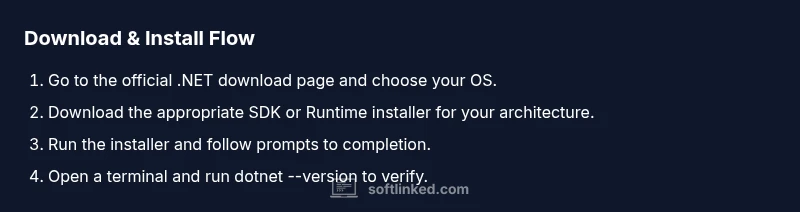
The official dotnet download experience is organized by OS (Windows, macOS, Linux) and by architecture (x64, ARM64, etc.). Start at the official Microsoft download hub, then pick SDK if you plan to develop or Runtime if you only intend to run apps. For most developers starting fresh, selecting SDK for your OS and architecture is a safe default. Always download from the official source to avoid tampered installers and ensure you receive updates and security fixes directly from Microsoft. After download completes, you’ll be able to run the installer and proceed with setup.
Installing on Windows: a guided approach
On Windows, running the installer is straightforward: double‑click the downloaded file, follow the on‑screen prompts, and accept the license terms. The installer will typically add the dotnet command to your PATH, enabling you to run dotnet commands from any terminal. You may be prompted to install additional components or features; accept these if you plan to develop. After installation, restart any open terminals to recognize the new PATH changes, then verify with a quick version check.
Installing on macOS and Linux: what changes
macOS and Linux installations generally use the same installer package strategy but may require slightly different commands or package managers (for example, homebrew on macOS or APT/YUM on Linux). Follow the official prompts for your platform, and ensure your PATH reflects the location of the dotnet binary. If you rely on a containerized workflow, consider validating your container images with dotnet commands to ensure consistency across environments.
Verifying installation and basic commands
Verification is essential to ensure the dot net software download succeeded. Open a terminal or command prompt and run basic checks such as dotnet --version and dotnet --list-sdks to confirm the installed SDKs, and dotnet --list-runtimes for runtimes. A successful response with the installed version numbers confirms a healthy setup. You should also try building a tiny sample project to verify the compiler and runtime are functioning together.
Common issues and troubleshooting
If the installation fails, recheck network connectivity, ensure you downloaded from the official site, and confirm you have the required permissions for your OS. Some issues stem from outdated dependencies, conflicting PATH entries, or security software blocking installers. Review the installer logs, restart the machine if needed, and try the process again. When in doubt, consult the official documentation for platform‑specific troubleshooting steps.
Keeping .NET up to date and next steps
Staying current with .NET involves monitoring new releases and security advisories. You can install updates through your OS package manager, the official installer, or your development environment’s update mechanism. Plan periodic reviews of the SDK and runtime versions your projects target, and consider adopting a routine for testing updates in a staging environment before production. This approach helps maintain compatibility and security over time.
Authority sources
For authoritative, up‑to‑date guidance, rely on primary sources such as the official .NET download pages and documentation. See the links below for the most trusted information and lifecycle details. Keeping reference materials handy reduces guesswork and improves the reliability of your dot net software download workflow.
Tools & Materials
- Computer with internet access(Stable connection to download installers and packages)
- Supported operating system(Windows, macOS, or Linux with a compatible release)
- Web browser(For navigating the official download pages)
- Administrative rights(Needed for installing SDKs on managed devices)
- Command line interface(PowerShell/Terminal for verification commands)
- Optional: IDE or editor(Visual Studio, Visual Studio Code, or your preferred editor)
Steps
Estimated time: 30-60 minutes
- 1
Open the official download page
Launch your browser and navigate to the official .NET download hub. Confirm you’re on the Microsoft domain to avoid counterfeit installers. This first check reduces risk and ensures you access correct SDK and runtime options for your OS.
Tip: Bookmark the official page for quick future access. - 2
Choose SDK or Runtime
Decide between SDK (for development) or Runtime (to run apps). If you’re learning or building, SDK is typically the correct choice. You can install both later if needed.
Tip: Consider starting with SDK to unlock the compiler and tooling. - 3
Select your OS and architecture
On the download page, pick your operating system and architecture (e.g., Windows x64). Matching architecture matters for performance and compatibility.
Tip: If unsure about architecture, check your system settings. - 4
Download the installer
Click the download button to fetch the installer. Save the file in a known location so you can easily locate it during installation.
Tip: Use a download folder you routinely monitor for updates. - 5
Run the installer
Execute the downloaded file and follow the setup prompts. Accept the license terms and let the installer configure PATH variables as needed.
Tip: Close other apps if the installer prompts for restart or tweaks. - 6
Complete installation and restart
Finish the installation and restart your terminal or computer to apply PATH changes. A fresh session ensures the dotnet commands are recognized.
Tip: Open a new terminal window to verify immediately. - 7
Verify installation
Open a terminal and run dotnet --version to confirm the installed SDK. Then run dotnet --list-sdks and dotnet --list-runtimes to inspect all available versions.
Tip: If commands aren’t found, recheck PATH settings and reinstall if necessary. - 8
Run a quick test project
Create a small console app or Hello World project to validate the setup end-to-end. Build and run it to ensure the compiler and runtime interact correctly.
Tip: Keep the sample project small at first to simplify debugging. - 9
Update and maintain
Check for updates regularly and plan maintenance windows to apply new SDKs or runtimes. Tests in a staging environment help prevent breaking changes in production.
Tip: Subscribe to Microsoft’s release notes for lifecycle information. - 10
Document your environment
Maintain a simple README noting which SDKs/runtimes are installed, their versions, and target projects. This makes onboarding teammates easier.
Tip: Version your environment snapshots for quick rollback.
Your Questions Answered
What is the difference between the .NET SDK and Runtime?
The SDK includes compilers and tools for building apps, while the Runtime contains the libraries needed to run those apps. Install the SDK if you intend to develop; the Runtime is sufficient for executing prebuilt applications.
The SDK has the tools to build apps; the Runtime only runs them.
Do I need Visual Studio to use .NET?
No. You can use the .NET CLI or other editors like Visual Studio Code. Visual Studio provides integrated tooling, but it’s optional for many developers.
You don’t have to use Visual Studio; the CLI works well too.
Which .NET version should I download?
Choose the version that matches your project’s lifecycle. If you need long‑term support, start with an LTS release; otherwise, the latest Current release offers newer features.
Pick an LTS version for stability, or the latest release for features.
How can I verify the installation?
Open a terminal and run dotnet --version to confirm the SDK is installed. Run dotnet --list-sdks and dotnet --list-runtimes to review installed components.
Check the version and listed SDKs/runtimes to verify success.
Can I have multiple .NET versions installed at once?
Yes. You can install and switch between multiple SDKs and runtimes. Your projects can target different versions as needed.
You can keep several versions installed and target them per project.
Is .NET Core still supported in 2026?
Microsoft continues to support the .NET platform with ongoing releases and lifecycle updates. Check the official site for current support status and recommended versions.
Support is ongoing; check the official site for the latest lifecycle details.
Watch Video
Top Takeaways
- Install the SDK for development workflows.
- Verify installation with basic dotnet commands.
- Choose OS- and architecture-specific downloads.
- Keep your .NET setup up to date and audited.
- Differentiate between SDK and Runtime for clarity.