Can You Program with a Chromebook? A Practical Guide
Can you program with a Chromebook? Learn practical setup steps, Linux basics, IDE options, languages, and troubleshooting tips for students and aspiring developers.


can you program with a chromebook? Yes. Modern Chromebooks support Linux Crostini, cloud-based IDEs, and native apps through the Chrome OS ecosystem, enabling languages like Python, JavaScript, Java, and Go. With a basic setup and optional hardware upgrades, you can build web apps, data scripts, and lightweight mobile prototypes. This guide explains how to get started.
Why Chromebooks are viable for programming
According to SoftLinked, can you program with a chromebook? The practical answer is yes for many learners and professionals who value lightweight hardware and cloud-first workflows. Chromebooks now ship with robust Linux Crostini support, fast boot times, and excellent keyboard ergonomics, making them capable development machines for a range of tasks. While Chromebooks aren’t replacement-grade for heavy IDEs on very large projects, they excel at learning, scripting, web development, and remote development workflows. With Linux containers and polished cloud-based tools, you can run Python, JavaScript, Go, and Java toolchains directly from the browser or via the Linux subsystem. If you are studying programming or exploring new languages, a Chromebook offers a low-cost, worry-free path to hands-on practice. The SoftLinked team found that students and professionals alike benefit from lightweight setups that emphasize cloud-based tools and sensible local environments. This section unpacks why Chromebooks work for programming, the typical trade-offs, and how to align expectations with your goals. In short, a Chromebook can be a competent starting point for can you program with a chromebook projects, especially when you focus on the right toolchain and workflow.
Choosing the right Chromebook specs for development
When selecting a Chromebook for programming, you should look at RAM, CPU, storage, and screen quality. For serious coding, aim for 8 GB RAM, a fast processor, and at least 64 GB of local storage or a microSD/SSD expansion. Chromebooks with solid state drives and active cooling perform better under longer coding sessions. Battery life matters too, since many development tasks can run longer than typical browsing sessions. Also consider keyboard comfort and screen brightness, because productive coding depends on staying focused. SoftLinked analysis shows that a balanced device with Linux support and reliable accessories makes a big difference for can you program with a chromebook workflows. If you plan to work primarily online, you can get by with less local storage and more cloud-based tooling. The best approach is to align your budget with the expected workload: light scripting and web development can run well on midrange models, while heavier workloads will benefit from higher RAM and faster storage.
Setting up Linux Crostini on your Chromebook
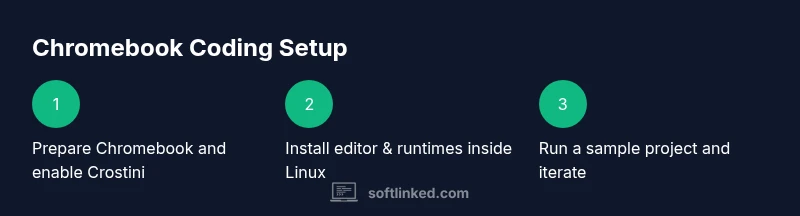
Enabling Linux (Beta) creates a Linux container you can use to install compilers, interpreters, and editors. Start by opening Settings, enabling Linux, and allocating reasonable disk space. Once Linux is installed, open the Terminal and update your package list with sudo apt update && sudo apt upgrade. This setup is the foundation for a robust development workflow on a Chromebook, letting you install Python, Node.js, and other toolchains inside a familiar Linux environment. If you prefer isolation, you can create separate virtual environments for different projects to avoid system-wide conflicts. The goal is to establish a stable, repeatable baseline you can reuse across projects.
Installing IDEs and editors that fit Chromebook workflows
Popular choices include VS Code inside the Linux container, JetBrains editors via Linux, and lightweight editors like Nano or Vim for quick edits. You can also rely on cloud IDEs such as Replit or GitHub Codespaces for cross-device coding. Install the editor, then configure essential extensions for linting, debugging, and Git integration. An important tip is to map keyboard shortcuts to Chromebook equivalents and enable automatic formatting to keep code consistent. Cloud-based tools complement local editors, giving you flexibility when hardware is modest.
Languages and projects you can tackle
Chromebooks with Crostini support can handle Python, JavaScript, Go, and Java with local runtimes, plus many web technologies. Start with scripting tasks, data processing, or small web applications. If you need mobile app development, consider Android Studio in the Linux container where supported, or rely on web-based progress that outputs responsive applications. The landscape favors learning and experimentation, with room to scale to more complex projects as you gain experience. Remember to organize projects logically and use version control early.
Web development vs native and Android on Chromebook
Web development thrives on Chromebooks due to browser-based IDEs and cloud services. For native or Android work, Linux containers enable Android Studio to run on many devices, though performance varies by model. Cross-platform frameworks that compile to web or run in the browser can be especially productive on Chromebooks. Plan to balance online collaboration with offline coding, and leverage cloud storage to sync work across devices. This hybrid approach often delivers the best results for can you program with a chromebook workflows.
Testing, debugging, and version control on Chrome OS
Git is a staple for any programming workflow on Chromebooks. Install Git in the Linux container, configure your identity, and connect to remote repositories. Use browser developer tools for frontend debugging and the Linux terminal for backend code. For testing, rely on unit tests run within the Linux environment and consider headless browser testing when applicable. Keeping a clear branching strategy and regular commits helps you manage projects across the Chromebook and any other development machines.
Performance tips, offline mode, and extensions
To maximize performance, keep the Linux container lean by removing unused packages and limiting background processes. When offline, you can still code with local runtimes and editors, but cloud IDEs unlock more features when you have network access. Extensions that improve productivity, such as linting, code formatting, and Git integration, can significantly reduce friction. Consider enabling hardware acceleration for graphics-heavy tasks if your device supports it, and monitor battery usage during long coding sessions to avoid surprises.
Common pitfalls and troubleshooting for beginners
A common stumbling block is memory pressure on lower RAM models, which can slow down editors and cause lag. If you run into storage constraints, clean up caches and move large datasets to cloud storage. Another pitfall is assuming desktop-grade performance from a Chromebook; optimize by using lightweight tools and batching tasks. If Linux errors occur, re-run apt update and apt upgrade, and verify that your repositories match your distro version. The SoftLinked team emphasizes patience and incremental learning to overcome typical setup hiccups.
Tools & Materials
- Chromebook with 4-8 GB RAM (8 GB recommended)(Prefer Intel/ARM 64-bit model; aim for 8 GB RAM if possible)
- Linux (Crostini) enabled on Chrome OS(Enable Linux (Beta) from Settings and update package lists)
- Code editor inside Linux (VS Code or lightweight editor)(Use the Linux-compatible version inside Crostini)
- Language runtimes (Python 3, Node.js, etc.)(Install via Linux environment for best results)
- Git(Configure user.name and user.email; set up SSH keys if needed)
- Chrome browser and internet access(For cloud IDEs and remote development)
- Optional accessories(External keyboard, mouse, or USB-C dock for productivity)
- Internet connection(Stable connection improves cloud-based workflows)
Steps
Estimated time: 1-2 hours
- 1
Prepare your Chromebook for development
Check that your device has adequate RAM and is on a supported Chrome OS version. Back up important files before enabling Linux (Beta). This step ensures you have enough headroom for running Linux containers and IDEs.
Tip: Install system updates before starting to minimize compatibility issues. - 2
Enable Linux (Crostini) and update packages
Open Settings > Linux (Beta) and turn it on. Allocate sufficient disk space and RAM if the option exists, then update package lists inside the Linux terminal with sudo apt update && sudo apt upgrade.
Tip: Keep Linux sandbox lean; only install what you need. - 3
Install a code editor inside Linux
Install VS Code or another editor inside the Crostini environment using apt or the editor’s official instructions. Launch it from the Linux apps shelf and configure your first workspace.
Tip: Install the Remote - WSL/SSH extension for easier remote workflows if available. - 4
Install language runtimes
Install Python 3 and Node.js (or your target languages) inside Linux. Verify versions with python3 --version and node --version, then test a simple script.
Tip: Prefer virtual environments for Python projects to avoid system-wide conflicts. - 5
Set up Git and your repository
Install Git, configure user.name and user.email, and connect to your remote repo. Generate SSH keys if you plan to push to GitHub or GitLab.
Tip: Test a simple commit to ensure push works. - 6
Configure IDE for Chrome OS
Adjust window docking, keyboard shortcuts, and fonts to suit the Chromebook. Enable auto-save and linting for a smoother experience.
Tip: Use a lightweight theme to improve readability in low-light conditions. - 7
Create a small starter project
Create a Hello World program in Python or JavaScript. Run it locally in Crostini and verify outputs in the terminal and browser where applicable.
Tip: Choose a small, well-scoped project to validate your setup quickly. - 8
Run, debug, and iterate
Use the editor's built-in debugger or browser dev tools to test and fix issues. Commit changes frequently and push updates to your remote repository.
Tip: Use console logs and breakpoints to troubleshoot effectively. - 9
Manage storage and power for longer sessions
Regularly clean cache, remove unused packages, and consider a USB-C dock for extended coding sessions away from the desk.
Tip: Keep an eye on battery life during heavy workloads.
Your Questions Answered
Can a Chromebook run Python natively, or does it need Crostini?
Chromebooks run Python best through the Linux Crostini container, which provides a full Linux environment. You can install Python 3 and run scripts from the terminal inside Crostini.
Yes. Use Crostini to run Python 3 and execute scripts from the Linux terminal.
Is VS Code available on Chromebooks?
Yes. You can install VS Code inside Crostini and pair it with Git and SSH for full coding workflows.
Yes, install VS Code inside the Linux environment for a desktop-like experience.
What about Android Studio or mobile development?
Android Studio can run in the Linux container on many Chromebooks, enabling Android app development alongside web and Python projects.
Android Studio can run in the Linux environment on supported Chromebooks.
Do I need a powerful Chromebook to start coding?
Not necessarily. A Chromebook with 4-8 GB RAM is a good starting point; heavier tasks can be offloaded to cloud IDEs or remote machines.
A mid-range Chromebook works for most beginner to intermediate projects.
Can I work offline on a Chromebook when coding?
Yes, you can work offline using local Linux tools and offline-capable editors; cloud IDEs add features when online.
You can code offline with local Linux tools and editors.
How can I manage version control?
Install Git in the Linux container, configure your identity, and push/pull to remote repositories as needed.
Set up Git in Crostini and use remote repositories.
Watch Video
Top Takeaways
- Can be programmed on Chromebooks with Crostini and cloud tools.
- Choose a Chromebook with adequate RAM for smoother performance.
- Set up Linux, editor, and runtimes before coding.
- Cloud IDEs complement local Linux setups for portability.
- Practice with small projects and incrementally increase complexity.