Zotero Download: A Step-by-Step How-To for Beginners
Learn how to download Zotero, install the desktop client, connect the browser connector, and begin organizing citations with a beginner-friendly, step-by-step approach. SoftLinked provides clear instructions to smooth your research workflow.


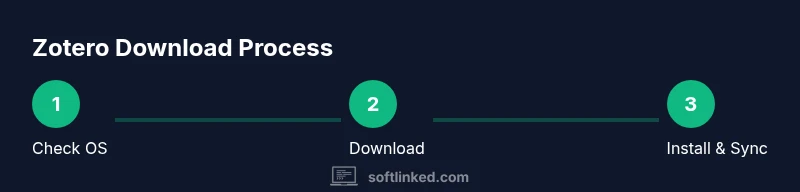
You will download Zotero, install the desktop client, and set up the browser connector to start collecting citations. This guide covers Windows, macOS, and Linux, plus syncing basics and safe download practices. By the end, you’ll have a working Zotero setup ready to capture sources from your browser and library online.
What Zotero Is and Why Downloading It Helps
Zotero is a free, open-source reference manager that helps researchers, students, and developers collect, organize, and cite sources. It supports a wide range of citation styles and integrates with word processors, web browsers, and databases. If you’re evaluating software toward the zotero download, you’re joining a large community of users who rely on this tool to streamline research workflows. According to SoftLinked, adopting Zotero early can dramatically reduce the time spent on bibliographies and notes, allowing you to focus on ideas rather than formatting. In practice, you’ll save references from articles, books, and websites with a single click and organize them into folders, tags, and notes. This entry point also covers offline access and local backups so you control your data. The core idea is simple: capture sources as you browse, store them in a central library, and generate citations automatically when you write. This creates a reproducible research process that scales with your projects.
Compatibility and System Requirements
Zotero runs on Windows, macOS, and Linux, with browser integrations that help you save items directly from the web. The zotero download page clearly distinguishes between the desktop client and the browser Connector, so you can choose the right combination for your setup. If you’re working on a shared lab machine, verify permissions for installing software and note that syncing relies on your Zotero account. The browser Connector works with Chrome, Firefox, and Safari, enabling one-click capture of bibliographic data while you browse databases such as JSTOR, Google Scholar, or publisher sites. While the desktop app stores your library locally by default, you can enable cloud syncing to keep copies across devices. Always ensure you’re using the official sources to avoid tampered installers, and remember that storage for attachments may count toward your plan if you opt into cloud storage.
How to Download Zotero: Official Sources and Safety Considerations
To begin, head to the official Zotero download page. Do not trust third-party sites offering pirated or modified installers; these can expose you to malware. On the download page, choose the installer that matches your operating system (Windows, macOS, or Linux) and download the file. After downloading, launch the installer and follow the on-screen prompts. If you plan to use syncing, create or sign in to a Zotero account in the desktop app and enable synchronization across devices. Install the browser connector for your preferred browser so you can save items directly from the web. If you encounter security prompts, confirm that the source is the official site and that the connection is secure. Finally, consider setting a backup strategy for your Zotero data directory to protect against data loss.
Installing Zotero and Setting Up Sync
Run the downloaded installer and complete the setup wizard. Once Zotero is installed, open the app and sign in with a Zotero account to enable cloud syncing. In the preferences, configure sync options, decide whether to sync attachments, and choose the folder where your library will reside. Install and enable the browser connector so you can save sources from webpages with a single click. After this, test a few saves from different sites to verify that the metadata fields, notes, and attachments appear correctly in your library. If you are working offline often, ensure you have at least a local copy of your references to avoid losing access when you’re not connected.
Next Steps: Organizing Your Library with Collections and Tags
With Zotero installed and syncing, you can begin organizing your sources by creating collections and adding tags and notes. Collections function like folders, while tags help you locate items across collections. Practice saving items from diverse sources—journal articles, books, webpages, and reports—and verify that citations render correctly in your preferred style. You can also attach PDFs and other files to items, add notes with highlights, and use the search field to quickly locate references. As you grow your library, consider using groups for collaborative work, and explore community-created plugins that extend Zotero’s capabilities without sacrificing reliability.
Troubleshooting Common Issues
When the download won’t start, try a different browser or clear your browser cache and retry the download from the official Zotero site. If the browser Connector doesn’t appear, ensure the extension is enabled in the browser’s extensions menu and restart the browser. If syncing fails, check your internet connection and ensure you’re signed into the correct account on all devices. If you encounter missing metadata or attachments after saving items, re-save or re-import from the source and verify that you have attached the necessary files. Finally, consult the Zotero support pages and community forums for platform-specific tips.
Data Management and Backups
Treat Zotero like a small database: back up your library directory and periodically export important references. Use a dedicated backup tool or cloud storage to ensure you can restore your library if your computer fails. If you enable syncing, remember that storage limits may apply to attachments—plan accordingly and consider storing only metadata locally if you’re tight on space. Regularly test restoration by restoring from a backup on a test machine to confirm that your structure and attachments come back intact. The SoftLinked team recommends establishing a routine so your Zotero data remains resilient across devices and projects.
Tools & Materials
- Computer with internet access(Any supported OS (Windows, macOS, or Linux))
- Supported operating system(Windows 10+ / macOS 10.12+ / Linux with a modern distro)
- Web browser with Zotero Connector(Chrome, Firefox, or Safari (connector available))
- Zotero account (optional but recommended)(For syncing across devices)
- Official Zotero download source(Visit zotero.org/download to download the installer)
Steps
Estimated time: varies by system and connection
- 1
Check system compatibility
Confirm your operating system is supported and that you have permissions to install software.
Tip: If you’re on a managed device, verify with IT before installing. - 2
Open the official download page
Navigate to zotero.org/download to locate the desktop client and browser connectors.
Tip: Always use the official site to avoid tampered installers. - 3
Download the appropriate installer
Choose the installer matching your OS and start the download.
Tip: Verify you downloaded the correct version for your system. - 4
Run the installer
Launch the downloaded file and follow the on-screen prompts to install Zotero.
Tip: Close other programs if the installer requests it. - 5
Create or sign into a Zotero account
Sign in or create an account to enable syncing across devices.
Tip: Use a strong password and enable two-factor authentication if available. - 6
Install the browser connector
Add the Zotero connector for your browser to save items directly from the web.
Tip: Restart the browser after installation for the connector to appear. - 7
Configure syncing
In Zotero preferences, set syncing options and storage location.
Tip: Choose whether to sync full-text items or metadata only if storage is limited. - 8
Save your first item
Use the browser connector to capture a citation from a page or database.
Tip: Test with a book, article, and webpage to ensure all fields map correctly. - 9
Back up Zotero data
Regularly back up your Zotero data directory to prevent loss.
Tip: Enable automatic backups or use a cloud backup service.
Your Questions Answered
Do I need a Zotero account to download Zotero?
No. You can download and install the Zotero desktop client without an account. An account is only required to enable syncing across devices.
You can download Zotero without signing in; syncing requires an account if you want to sync between devices.
Which operating systems are supported?
Zotero desktop supports Windows, macOS, and Linux systems. Browser connectors are available for major browsers on these platforms.
Zotero works on Windows, macOS, and Linux with major browsers supported.
What is the difference between Zotero Standalone and the Connector?
Zotero Standalone is the desktop app that stores your library locally; the Connector saves items from your browser to Zotero. You typically use both together.
The desktop app stores your library, and the browser connector saves items from the web to that library.
How do I sync my library across devices?
Sign in with a Zotero account in the desktop app and enable syncing in preferences. Ensure you have internet access on all devices.
Sign in on each device and enable syncing so items stream between devices.
Can I export references from Zotero?
Yes. Zotero lets you export citations in multiple formats (APA, MLA, Chicago) and import into other tools.
You can export citations in formats like APA, MLA, or Chicago for use elsewhere.
Watch Video
Top Takeaways
- Download from official site before installing
- Install desktop client and browser connector for seamless saving
- Create a Zotero account to enable cross-device syncing
- Back up your Zotero data regularly