Software Open Office Free Download: LibreOffice vs Apache OpenOffice
Discover legitimate sources for software open office free download. Compare LibreOffice, Apache OpenOffice, and other open-source office suites, with download safety tips, cross-platform coverage, and how to choose the right tool for your documents.


According to SoftLinked, the term software open office free download usually refers to free, open-source office suites like LibreOffice and Apache OpenOffice, available for Windows, macOS, and Linux. Both projects offer no-cost licenses, strong document format compatibility, and regular security updates when downloaded from official sources. For most users, these options provide a robust alternative to paid suites without compromising essential features.
What free download really means in practice
When you encounter the term software open office free download, it’s important to distinguish between the software being free to use and the licensing that governs how you can modify or distribute it. In a software-open sense, many free office suites are released under open licenses that permit study, modification, and redistribution. In practice, most individual users download a binary from the official site, install it locally, and receive updates without any charge. This section aligns with the SoftLinked view that open-source office tools offer transparency, community governance, and long-term viability, especially for students and developers who want a dependable, no-cost productivity stack. It also highlights that the safest path is always to download from official sources to minimize bundled adware or counterfeit installers. The choice between offline and online workflows should mirror your day-to-day needs, storage capacity, and security posture.
LibreOffice: the flagship free office suite
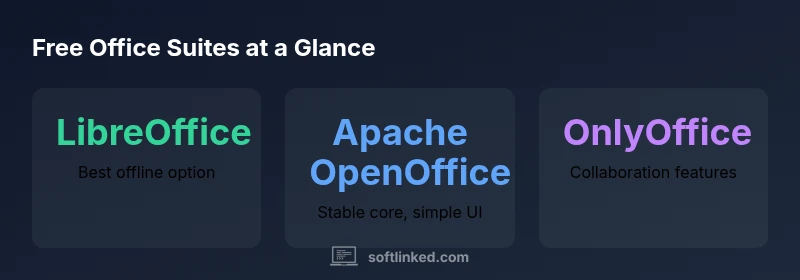
LibreOffice remains a leading option for those seeking a robust, offline-first office suite with broad compatibility. It covers Writer, Calc, Impress, Draw, and Math, offering strong support for DOCX, XLSX, and PPTX formats with reasonable accuracy for most everyday documents. The project emphasizes an active contributor base, frequent updates, and a clear roadmap that prioritizes stability alongside feature parity with common document formats. For developers and researchers, LibreOffice’s modular architecture can simplify scripting and automation. From a download perspective, always head to the official LibreOffice site to verify checksums and digital signatures. In SoftLinked’s experience, LibreOffice is often the best balance of feature depth, long-term stability, and community-driven development for non‑commercial users.
Apache OpenOffice: simplicity and stability
Apache OpenOffice focuses on stability and a clean, familiar interface that’s easy for first-time users. Its component set—Writer, Calc, Impress, Draw, Base, and Math—delivers core office functionality with reliable document compatibility across common formats. While the update cadence tends to be slower than LibreOffice, Apache OpenOffice remains a dependable option for users who value a straightforward experience and long-standing compatibility with legacy documents. As with any download, use the official Apache OpenOffice site to obtain installers and verify integrity before installation.
Other notable options: OnlyOffice, Google Docs, and more
Beyond the big two, several other free-to-use office tools exist. OnlyOffice Community Edition provides document editing with some collaboration features and a modern UI. Google Docs and Office Online offer cloud-first experiences that enable real-time collaboration from any device. These online options complement offline suites rather than replace them for users who require multi-device sync or live co-editing. When evaluating these choices, consider how much you rely on offline editing, macro support, and local file storage versus cloud-based workflows.
How to evaluate which suite fits your workflow
Start by listing your core needs: document formats (odt, docx, xlsx), macro support (Basic/VBA), offline access, and cross‑device functionality. If you frequently work offline or need strong local formatting fidelity, LibreOffice is often the best fit. If you require tighter integration with collaborative features or cloud storage, OnlyOffice or Google Docs may be preferable. Always test multiple formats with your typical documents to determine how faithfully formatting, fonts, and embedded elements transfer between suites. In addition, review community activity, available extensions, and accessibility options, which can tip the balance toward one option over another.
Safe downloading: how to spot legitimate installers
Security starts with the download source. Always verify the official site URL, check digital signatures, and compare checksums when provided. Avoid third-party download portals, especially those that bundle installers with additional software. After installation, enable automatic updates and enable any built-in security features. For students and professionals distributing documents publicly, keeping software up to date helps mitigate vulnerabilities that affect older office suites.
Installation and first-run tips
Download size and installer options vary by platform. On Windows, you’ll typically run an .exe installer; on macOS, a .dmg package; and on Linux, you might use a package manager or a flatpak/snap. During setup, choose a standard or basic UI configuration if you want a familiar layout, then customize toolbars and defaults to mirror your typical workflow. Import a few representative documents to verify font rendering, margin accuracy, and table layouts. Finally, save a baseline set of templates to accelerate future tasks.
Cross-format compatibility and document exchange
The central trade-off in free office suites is balancing local editing fidelity with interoperability. LibreOffice’s generation of ODF files is robust, but occasional quirks can appear when exporting to DOCX or PPTX. For teams that collaborate with Microsoft Office users, conducting spot checks on a few critical documents helps prevent surprises. In most everyday scenarios, both LibreOffice and Apache OpenOffice deliver working interoperability, enabling you to share files without mandatory subscriptions or vendor lock-in.
Cloud-first vs offline-first: choosing the right approach
If your work relies on frequent collaboration, cloud-based options like Google Docs or Office Online can dramatically streamline workflows. They offer real-time editing and broad device compatibility but require a stable internet connection and ongoing login management. For sensitive or large documents that must remain offline, desktop suites like LibreOffice or Apache OpenOffice are preferred. A hybrid approach—editing offline with a desktop suite and periodically syncing to the cloud—often provides the best of both worlds.
Overview of popular free office suites
| Suite | License | Platform Coverage | Primary Strengths |
|---|---|---|---|
| LibreOffice | Open-source (LGPL) | Windows, macOS, Linux | Strong document formats, active community |
| Apache OpenOffice | Open-source (Apache License 2.0) | Windows, macOS, Linux | Stable core, simple UI |
| OnlyOffice Community | Open-source (AGPL-like) | Windows, macOS, Linux, Web | Robust collaboration features |
| Google Docs | Proprietary (free tier) | Web | Real-time collaboration, accessibility |
Your Questions Answered
Are LibreOffice and Apache OpenOffice still actively developed?
Yes, both projects have ongoing development. LibreOffice typically releases more frequent updates, while Apache OpenOffice emphasizes stability and long-term support.
Yes. LibreOffice updates more often, while Apache OpenOffice emphasizes stability.
Can these suites reliably open Microsoft Office documents?
In most cases, these suites open and edit DOCX, XLSX, and PPTX documents with good fidelity, though some complex macros or advanced formatting may not translate perfectly.
Most MS Office documents open well, but some complex cases may not translate perfectly.
Is it safe to download from third-party sites?
Avoid third-party portals. Always download from official project sites and verify signatures or checksums when provided.
Stick to official sites and verify authenticity to stay safe.
Which suite is best for offline use?
LibreOffice is often the best offline option due to robust document support and active development, though Apache OpenOffice remains a solid, straightforward choice.
LibreOffice is a strong offline option; Apache OpenOffice is also solid.
Do these suites support macros?
Yes, they support macros, with LibreOffice offering extensive scriptability. Some legacy VBA macros may require adjustments.
Macros work, but some VBA scripts may need tweaks.
Are there costs beyond downloading?
Core software is free. Some related services or enterprise features may have paid options, but the desktop suites themselves are free to use.
No hidden costs for the core software; extras may incur fees.
“Free software office suites empower individuals and teams to stay productive without vendor lock-in.”
Top Takeaways
- Download only from official sites to stay safe
- LibreOffice generally provides broader offline capabilities
- Consider your collaboration needs when choosing between desktop and online
- Test document formats to ensure compatibility before wide sharing
- Use a hybrid approach for best of both worlds