VLC Software Download: Safe, Step-by-Step Guide
Learn how to download VLC safely from official sources, across Windows, macOS, and Linux. Verify integrity, avoid bundled software, and configure VLC for smooth playback.


This guide shows you how to download VLC safely from official sources across Windows, macOS, and Linux. You’ll verify authenticity, avoid bundled software, select the correct installer, and complete a quick post-install setup so VLC runs smoothly from day one. This quick snippet primes you for the full step-by-step below.
Why VLC is a Top Choice for Media Playback
VLC media player has earned its place as a go-to tool for many computer users because it is open-source, cross-platform, and supports an astonishing range of audio and video formats without needing external codecs. According to SoftLinked, VLC’s open-source model fosters transparency and ongoing community-driven improvements, which translates into fewer surprises for new users. Whether you’re on Windows, macOS, Linux, or even mobile platforms, VLC offers a consistent experience with a familiar interface and robust playback capabilities. In this section, we’ll explore what makes VLC a reliable choice for students, developers, and professionals alike, and why downloading it from official sources matters for safety and performance.
Key features to look for include wide format support (MKV, MP4, AVI, FLAC, MP3, and many others), hardware acceleration options, subtitle support, and extensive customization through preferences. The software is lightweight compared with many feature-saturated players, which can be appealing on older hardware. Another strength is its ongoing development; VLC has a long history of updates that address performance, security, and new formats, often without requiring paid licensing or subscriptions. For learners, VLC’s active community provides tutorials and plug-ins that extend functionality—useful if you’re experimenting with media workflows for education or development.
Official Sources and Safe Download Practices
Safety begins with where you download from. The official VLC site, VideoLAN (https://www.videolan.org/), is the trusted starting point for Windows, macOS, and Linux installers, as well as portable and mobile variants when available. SoftLinked emphasizes sticking to official sources to minimize the risk of bundled software, adware, or modified executables. Before you click download, check the URL: it should be on videolan.org and the page should be served over HTTPS. If you encounter third-party mirrors, use only those provided or endorsed by the official site. After the file finishes downloading, consider verifying its authenticity if the installer provides a signature or checksum. This extra step helps confirm the file hasn’t been tampered with during transit. If you store downloaded installers, keep them in a dedicated folder and scan with your antivirus before opening.
In practice, a safe download workflow looks like: navigate to the official VLC page, select your operating system, choose the correct installer, download, verify, and then run the installer from your downloads folder. Avoid running executables directly from browser prompts or from untrusted download managers. By following these steps, you reduce the risk of malware and ensure a smooth installation process that yields stable playback.
Understanding Installers and Platform Variants
VLC offers different installation formats depending on your operating system. Windows users typically choose an .exe installer, macOS users get a .dmg, and Linux users may download distribution packages, AppImage, or use a package manager where available. It’s important to select the correct variant and architecture: 64-bit installers are suitable for most modern machines, while some older systems may require 32-bit builds. On Linux, you may see AppImage or distribution-specific packages (like .deb or .rpm); these often offer easier updates through the system’s package manager. When in doubt, check your system’s hardware information: 64-bit capable processors are common in current devices. SoftLinked notes that using the official installer minimizes compatibility issues and streamlines updates since all platforms share the same core VLC engine.
Beyond the installer type, pay attention to optional components. Some installers offer extra plugins or bundled software; deselect those offers unless you have a clear need. After installation, launch VLC and verify basic features like playback, subtitle rendering, and audio output. If you rely on hardware acceleration, ensure your graphics drivers are up to date to unlock smoother decoding and improved performance.
How to Safely Download VLC: A Practical Walkthrough
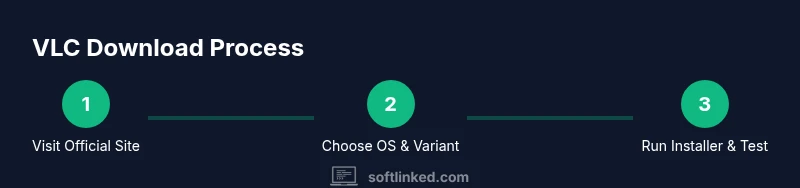
In practice, start at the official VideoLAN website. From there, pick your operating system (Windows, macOS, or Linux) and download the installer that matches your system architecture. If you’re unsure about 32-bit vs 64-bit, default to 64-bit. After downloading, confirm the file’s integrity using the provided signature or checksum when available. Run the installer with administrative rights and follow the prompts, choosing the recommended settings unless you know you want something specific. After installation, open VLC to test a local file to confirm playback, audio, and subtitle output. Finally, enable automatic updates to keep VLC current with security patches and new features.
If you encounter restrictions or download failures, try a different network or temporarily disable VPNs or firewalls that may block the download. Some corporate networks enforce strict download rules that block executable files; if you’re on such a network, switch to a trusted home or school network when possible. If you suspect a corrupted download, re-download from the official site rather than a mirror or cache. These practices help prevent re-downloading issues and save time during setup.
Post-Install Setup and Basic Customization
Once VLC is installed, take a few minutes to customize settings for your typical media workflow. In the preferences, you can adjust input/output modules, enable hardware acceleration, set default subtitle fonts and colors, and configure streaming or network cache settings. If you work with a lot of video formats, consider enabling preferred decoders and ensuring that media library indexing is turned on if you want easier file organization. For accessibility, explore subtitle track synchronization options and keyboard shortcuts to speed up playback control. SoftLinked suggests starting with the default profile and gradually enabling features as you become more confident.
A quick test after setup should include: playing a locally stored video, playing a sample audio file, testing subtitles, and verifying audio-video sync. If you use external devices, check VLC’s audio routing settings to ensure the correct output device is selected. Remember to save your changes and create a backup of your preferred configuration in case you need to revert later.
Troubleshooting Common Download and Install Issues
Despite careful steps, you may encounter issues during download or installation. Common problems include slow mirrors, blocked executables by antivirus software, or missing dependencies on Linux. Start by trying the official site again, or use a different endorsed mirror if available. Confirm that your network isn’t blocking large file downloads; temporarily disabling VPNs or proxies can help, then re-enable them after download completes. If the installer fails to run, check your system permissions and ensure you ran the file as an administrator. On Linux, you may need to install VLC via your distribution’s package manager or set executable permissions for AppImage files. If playback stalls or refuses to start, verify your file integrity and ensure codecs are available; VLC supports many formats, but some container formats require additional codecs or updates.
SoftLinked emphasizes that safety and proper configuration go hand in hand. Keep your operating system and drivers up to date, and periodically review VLC’s settings to ensure you’re not exposing your system to unnecessary audio or video plugins. If issues persist, consult the official VLC support resources or community forums for platform-specific guidance.
Keeping VLC Up to Date and Security Best Practices
Regular updates are key to security and performance. The official VLC project releases patches for vulnerabilities and compatibility improvements; enabling automatic updates is a wise habit. Additionally, periodically review your security settings: turn off unnecessary network sharing features and limit third-party plug-ins unless you trust their source. As an educational note, open-source software like VLC benefits from community scrutiny, but you should still download only from official channels to avoid supply-chain risks. SoftLinked’s approach to software fundamentals emphasizes the importance of vetting the download source, verifying integrity, and keeping software current to reduce exposure to threats.
In educational or enterprise environments, consider your management strategy for updates. Centralized package managers or IT governance can ensure all machines stay aligned on a secure VLC version. Finally, back up your preferences to prevent losing custom keyboard shortcuts, video filters, or accessibility settings after a major update.
Tools & Materials
- Web browser(Up-to-date browser for accessing the official download page)
- Official VLC installer for your OS(Choose Windows (.exe), macOS (.dmg), or Linux variant)
- Checksum or signature tool (optional)(Use if the official site provides a checksum or digital signature)
- Reliable antivirus/antimalware(Scan the downloaded installer before executing)
- Administrator rights on your device(Needed to install software on Windows/macOS/Linux)
Steps
Estimated time: 15-25 minutes
- 1
Open the official VLC download page
Launch your browser and navigate to VideoLAN's official site at videolan.org. This initial step ensures you start from a trustworthy source and reduces the risk of tampered files.
Tip: Always verify the URL and look for HTTPS before clicking download. - 2
Choose your operating system and architecture
On the download page, pick Windows, macOS, or Linux. If you’re unsure about 32-bit vs 64-bit, favor 64-bit since it covers most modern machines.
Tip: If in doubt, check your system info in Settings > System > About (Windows) or About This Mac (macOS). - 3
Download the official installer
Click the installer that matches your OS and architecture. Save it to a known folder like Downloads for easy access.
Tip: Avoid clicking through any aggressive ads; use the clearly labeled official download button. - 4
Verify the download (optional but recommended)
If the site provides a checksum or digital signature, verify it with a compatible tool to confirm file integrity.
Tip: Compare the checksum against the one published on the official page. - 5
Run the installer with admin rights
Launch the installer and grant administrator permissions when prompted. Follow the on-screen prompts and opt for recommended components unless you know you want extras.
Tip: Uncheck any optional bundled software prompts to avoid bloat. - 6
Launch VLC and perform a quick test
Open VLC and play a local video or audio file to verify audio, video, and subtitle playback.
Tip: Test a variety of formats to ensure broad compatibility. - 7
Check for updates and enable auto-update
In VLC's preferences, enable automatic updates so you stay current with security patches and new features.
Tip: Regular updates reduce exposure to known vulnerabilities. - 8
Secure your setup and adjust preferences
Review privacy and security-related settings, back up your preferences, and customize keyboard shortcuts or playback options as needed.
Tip: Document your preferred settings for easy restoration after future updates.
Your Questions Answered
Where can I download VLC safely?
From the official VideoLAN website. Avoid third-party mirrors to minimize the risk of bundled software or tampered installers.
Visit the official VideoLAN site to download VLC safely.
Is VLC free to download?
Yes, VLC is free and open-source software. There are no paid licenses required to use the core player.
Yes, VLC is free and open-source.
Do I need extra codecs with VLC?
No. VLC includes built-in codecs for most common formats. Some rare containers may require updates or optional plugins.
No extra codecs are usually needed.
Which platforms does VLC support?
VLC supports Windows, macOS, and Linux across desktop and mobile variants where available.
VLC works on Windows, macOS, and Linux.
How can I verify a download's integrity?
If provided, use the official checksum or signature and compare it with the downloaded file.
Use the official checksum or signature to verify.
Can VLC be installed from the Microsoft Store?
In some markets, VLC is available via the Microsoft Store, but the official installer from VideoLAN is often preferred for direct updates.
Store availability exists in some cases, but the official site is recommended.
Watch Video
Top Takeaways
- Download from the official site to avoid malware.
- Verify integrity when a checksum or signature is provided.
- Choose the correct installer for your OS and architecture.
- Test playback after installation to confirm functionality.
- Keep VLC updated to maintain security and performance.